
Just a quick how to for taking a flask app and putting it inside a docker container
Creating the Docker File
The Docker file is created in a parent directory of the flask app. This is where the Python version, the libraries used and the commands to run the app.
FROM python:3.10
WORKDIR /workdir
COPY requirements.txt .
RUN  pip install -r requirements.txt
COPY ./project_f5_ssl_profile_organised ./workdir
CMD ["python", "./workdir/app.py"]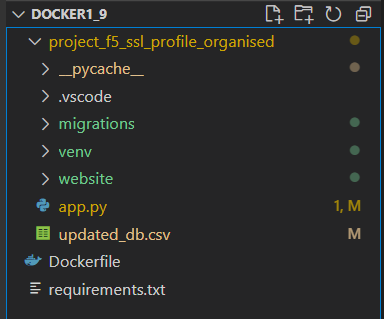
Minor Changes to app.py
We do need to amend the app.py file before we do continue. That is to remove the debugging.
if __name__ == '__main__':
    # app.run(debug=True)
    app.run(host='0.0.0.0')
Build Docker Container
Quite a few commands here to build and test the Docker container…
Build the container. This will download python and all the libraries needed that are in the requirements.txt file.
> docker build . -t f5_toolkitv1.9

	PS ~\Docker\F5 Toolkit\Docker1_9> docker build . -t f5_toolkitv1.9
	[+] Building 15.2s (3/9)
	 => [internal] load build definition from Dockerfile                                                                                                                                    0.0s
	 => => transferring dockerfile: 223B                                                                                                                                                    0.0s
	 => [internal] load .dockerignore                                                                                                                                                       0.0s
	 => => transferring context: 2B                                                                                                                                                         0.0s
	 => [internal] load metadata for docker.io/library/python:3.10                                                                                                                          8.4s
	 => [1/5] FROM docker.io/library/python:3.10@sha256:5bbf8c1d6f7c0946e405587c502f316239916caba98b2dd55a31f0fd465103dc                                                                    6.7s
	 => => resolve docker.io/library/python:3.10@sha256:5bbf8c1d6f7c0946e405587c502f316239916caba98b2dd55a31f0fd465103dc                                                                    0.0s
	 => => sha256:1671565cc8df8c365c9b661d3fbc164e73d01f1b0430c6179588428f99a9da2e 9.44MB / 55.01MB                                                                                         6.5s
	 => => sha256:4f9baf941f8e5b400c7905b316693ddfa423bfce3fc4ff1d1edb99887c5c86c3 8.53kB / 8.53kB                                                                                          0.0s
	 => => sha256:3e94d13e55e7a4ef17ff21376f57fb95c7e1706931f8704aa99260968d81f6e4 5.16MB / 5.16MB                                                                                          3.8s
	 => => sha256:5bbf8c1d6f7c0946e405587c502f316239916caba98b2dd55a31f0fd465103dc 2.35kB / 2.35kB                                                                                          0.0s
	 => => sha256:e36d71d42d9ddf851eca2d036b720f0dc81a260b1a2368c52888372a8595ab2a 2.22kB / 2.22kB                                                                                          0.0s
	 => => sha256:fa9c7528c685216129e8e67bf362a7702e7b1daa585ab85546a41508830657d6 10.88MB / 10.88MB                                                                                        5.7s
	 => => sha256:53ad072f9cd16fc8eb93b182b20e758e11acc0ef60babef0bf1043c08de1901a 3.15MB / 54.58MB                                                                                         6.5s
	 => => sha256:d6b983117533b718374f1701ef593d
Test the newly built docker container
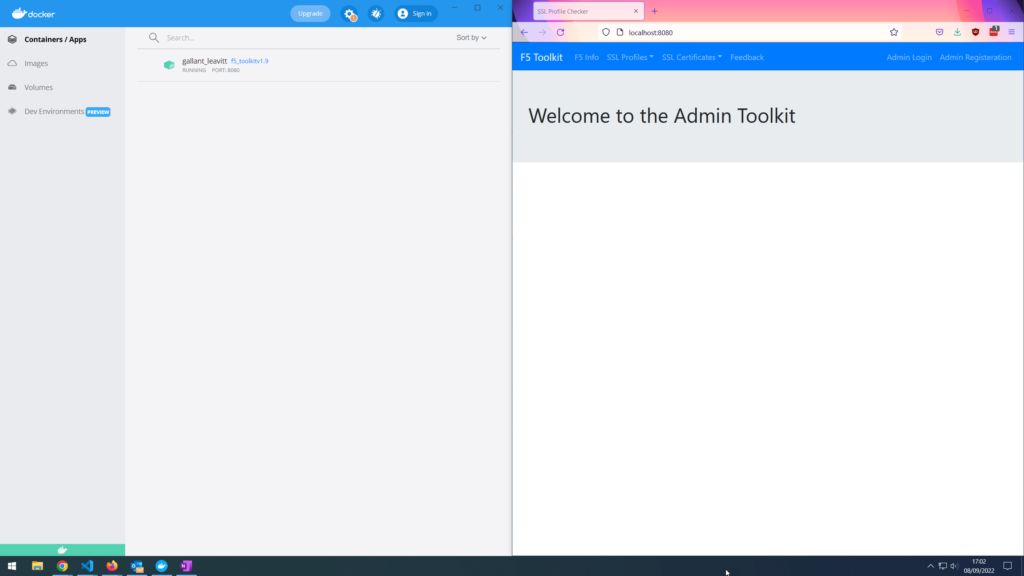
> docker run -d -p 8080:5000 f5_toolkitv1.9
60aab47d357ca360461def55a35d470bfbc4ca7c36ddaf5bf47a05dea558314a
Save the newly built docker container
> docker save -o ./dockerimage.tar f5_toolkitv1.9Tag the container with a version tag. Blank is for latest
> docker image tag f5_toolkitv1.9 docker.repository.test.com/f5_toolkitv1.9

> docker image tag [IMAGE NAME]:[VERSION TAG] docker.repository.test.com/[IMAGE NAME]:[VERSION TAG]
Now we can see both docker containers. Different names, but both the same. The repo named one will be uploaded.
> docker images
REPOSITORY                                         TAG       IMAGE ID       CREATED          SIZE
f5_toolkitv1.9                                     latest    9489af3dbe5d   13 minutes ago   1.35GB
docker.repository.test.com/f5_toolkitv1.9          latest    9489af3dbe5d   13 minutes ago   1.35GB
This is to upload the container to a repo. This is not required to run the container. Just something to do if there is a central store of Docker containers. I will be using a server to pull the container down to and run it.
> docker image push docker.repository.test.com/f5_toolkitv1.9:latest
	The push refers to repository [docker.repository.test.com/f5_toolkitv1.9]
	7e3e2e0909bb: Pushed
	82d99fc3d581: Pushed
	5e8bca19b2d3: Pushed
	5670add321f2: Pushed
	45dfa663a23e: Pushed
	e9a526601c2c: Pushed
	f25f9d09a4ed: Pushed
	100796cdf3b1: Layer already exists
	54acb5a6fa0b: Layer already exists
	8d51c618126f: Layer already exists
	9ff6e4d46744: Layer already exists
	a89d1d47b5a1: Layer already exists
	655ed1b7a428: Layer already exists
	latest: digest: sha256:7241e94dad59cc1811dbbef2f002819ceaf4c95f0e6fb36649a1da65e30a6532 size: 3057
Once we are on a server that has access to the Docker repo we can download the image
> docker pull docker.repository.test.com/f5_toolkitv1.9:latest
latest: Pulling from gns/f5_toolkitv1.9
1671565cc8df: Pull complete
3e94d13e55e7: Pull complete
fa9c7528c685: Pull complete
53ad072f9cd1: Pull complete
d6b983117533: Extracting [==============================================>    ]  181.6MB/196.8MB
d8092d56ded5: Download complete
102b77c1d556: Download complete
c65fe89c654d: Download complete
18db97afaa16: Download complete
14b895e8a1b9: Download complete
d6d3d0fe1198: Download complete
3d6f8d974c98: Download complete
eb5f013cc579: Download complete
Now it’s on the server. We can look at running the container.
Before this though as it is Flask it will run on port 5000 by default. We need to see if anything is running on that port or anything else we may want to use.
> netstat -plnt | grep 8080
> netstat -plnt | grep 3306
tcp        0      0 0.0.0.0:3306            0.0.0.0:*               LISTEN      900094/docker-proxy
Run the container on port 8080.
> docker run -d -p 8080:5000 docker.repository.test.com/f5_toolkitv1.9
55066ae74cc8e2c05290808a46422d2fc3e0e1794385fbb33dcde22ec2a49e9d

localport:flaskport
Now we can check to see it is actually running, then test. That’s all the container should accept connections and function just like it did when testing the Flask app in VScode or other IDE.
> docker ps
CONTAINER ID        IMAGE                                              COMMAND                  CREATED             STATUS              PORTS                               NAMES
55066ae74cc8        docker.repository.test.com/f5_toolkitv1.9   "python ./workdir/ap…"   53 seconds ago      Up 51 seconds       0.0.0.0:8080->5000/tcp              reverent_wing
Now if we ever need to stop the container we can use the command below. Be sure to use the container ID and not the name of the image.
docker stop 55066ae74cc8