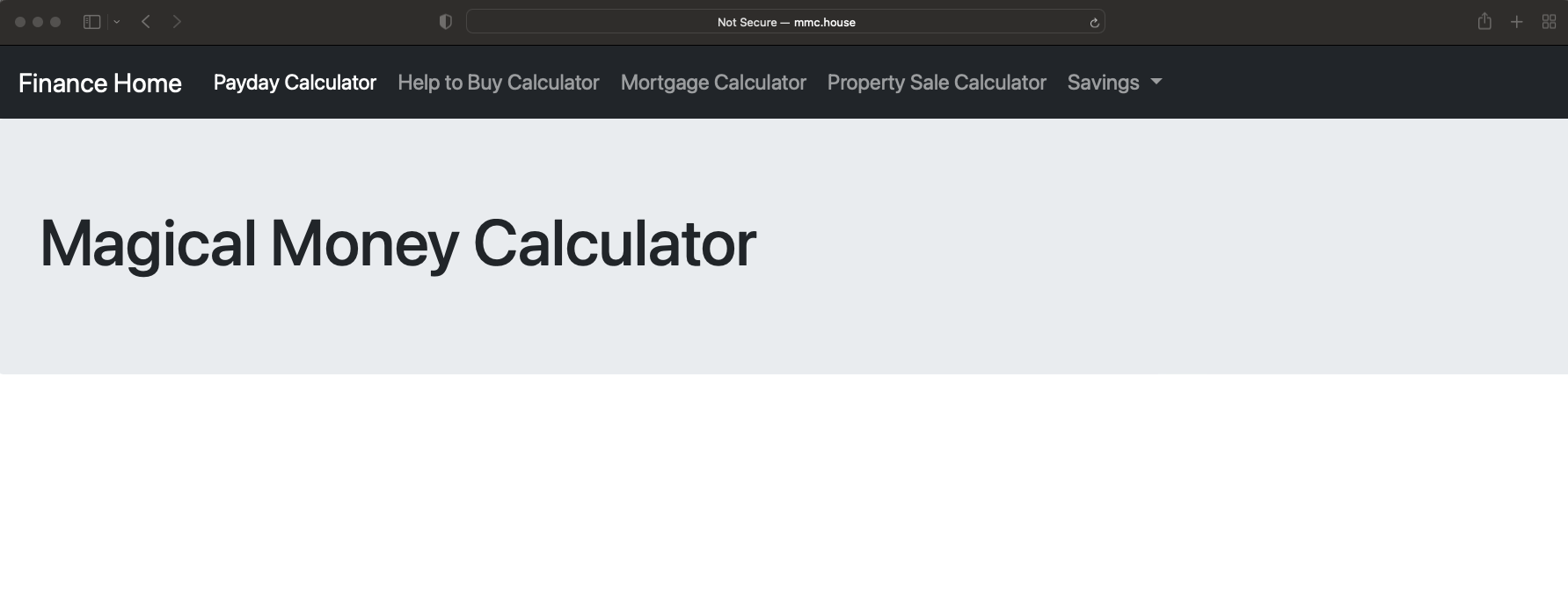
I have used Docker compose to create a private registry that is used to store my docker images. I then run the containers on the same server as the registry. The images are uploaded from my Mac.
I haven’t used Docker a lot so, several guides were required for me to get this to work. Digital Ocean has many excellent articles for Docker and Nginx. I am not going to try to recreate those, just reference them in terms of what I did, so I can remember what went wrong.
This process took a lot longer than anticipated after a few methods turned to dead ends.
There are several steps to getting a private repository installed and working. The main guide I used is from Digital Ocean, it goes through the prerequisites of installing; Docker, Docker compose and Nginx.
– Install Docker
– Install Docker Compose
– Install Nginx
– Configure Docker Registry
– Configure Nginx Port Forwarding
– Configure SSL Authentication
– Configure Docker Registry as a Service
– Increasing File Upload Size for Nginx
– Publishing to Your Private Docker Registry
– Pulling From Your Private Docker Registry
– Configure Nginx Port Forwarding for Finance Calculator
For all of this, I have used the following versions;
Ubuntu 20.04.5 LTS
Docker version 20.10.22, build 3a2c30b
Docker-compose version 1.29.2, build 5becea4c
Installing Docker
I had already installed Docker on my Ububntu VM prior to this, so I did not need this guide. However, I did run into an issue with the docker username not being added to my groups. The Digital Ocean guide includes this, so probably best to do it. It also means that you don’t need to use sudo for each docker command.
My fix was to follow this guide.
The only thing to add to this is that adding a new user group should require a restart on a VM. This may be sidestepped with running the command newgrp , as described in the Docker documentation.
Install Docker Compose
The next part is to install Docker compose. This was quite straight forward. I used the exact same version as in the guide.
Install Nginx
Nginx install, again pretty straightforward for anyone familiar with Linux. The only issue I did encounter was that my “server blocks” (vhosts in Apache) did not work. I did add the default domian.conf file and this seemed to resolve my issue.
sudo cp /etc/nginx/sites-available/default /etc/nginx/sites-available/registryla.house.conf
Docker Registry Configuration
This next section covers the configuration of the Docker registry. There were a number of issues with this configuration that mainly revolved around the SSL certificate. First, the SSL must now have a SAN in it. Second, the SSL certificate being self-signed must be added to the CA stores of all devices connecting. Docker is quite strict about this, and I was not able to find a way to ignore untrusted certificates as can be easily done for a REST API.
Configure Docker Registry
This is step 1 of the guide. Some useful commands to use to check everything is running…
stef@stef-VirtualBox:~/docker-registry$ netstat -plnt | grep 5000
(Not all processes could be identified, non-owned process info
 will not be shown, you would have to be root to see it all.)
tcp        0      0 0.0.0.0:5000            0.0.0.0:*               LISTEN      -
tcp6       0      0 :::5000                 :::*                    LISTEN      -
stef@stef-VirtualBox:~/docker-registry$ docker ps
CONTAINER ID IMAGE COMMAND CREATED STATUS PORTS NAMES
53955c400248 registry:2 "/entrypoint.sh /etc…" 12 hours ago Up 12 hours 0.0.0.0:5000->5000/tcp, :::5000->5000/tcp docker-registry_registry_1
Configure Nginx Port Forwarding
This is the part that allows the access from outside the Ubuntu server to the Docker container. Without this port forwarding, the container would only be accessible locally from the Ubuntu server.
I needed to do a few things here after following the Digital Ocean guide. First, I got an error for permissions.
Got permission denied while trying to connect to the Docker daemon socket at unix:///var/run/docker.sock: Get http://%2Fvar%2Frun%2Fdocker.sock/v1.39/containers/json: dial unix /var/run/docker.sock: connect: permission deniedThis was fixed with following this guide and adding in the docker group. I added the group and user with the following commands.
sudo usermod -aG docker $USER
newgrp docker
! Confirm docker group has been created
groups
Configure SSL Authentication
There were no issues with this section. The problems I faced were when attempting to login to the Docker registry, I received an error about the use of the common name field being legacy.
stef@stef-VirtualBox:~/docker-registry$ docker login https://registryla.house
Username: stefan.admin
Password:
Error response from daemon: Get "https://registryla.house/v2/": x509: certificate relies on legacy Common Name field, use SANs instead
The solution to this was to create a new self-signed cert and key to replace the old one. I chose to use the exact same names, so I would not need to modify any Nginx config.
! Command that did not work
sudo openssl req -x509 -nodes -days 365 -newkey rsa:2048 -keyout /etc/ssl/private/nginx-selfsigned.key -out /etc/ssl/certs/nginx-selfsigned.crt

! Command that worked
openssl req -newkey rsa:2048 -nodes -keyout /etc/ssl/private/nginx-selfsigned.key -x509 -days 365 -out /etc/ssl/certs/nginx-selfsigned.crt -subj "/CN=registryla.house" -addext "subjectAltName = DNS:registryla.house"
This did however bring about another problem about the SSL not being from a trusted CA, but the fix was to just restart the docker service.
stef@stef-VirtualBox:~/docker-registry$ docker login https://registryla.house
Username: stefan.admin
Password:
Error response from daemon: Get "https://registryla.house/v2/": x509: certificate signed by unknown authority
sudo service docker restart
Configure Docker Registry as a Service
Nice and easy to problems here
nano docker-compose.yml...
registry:
restart: always
...docker-compose up -dIncreasing File Upload Size for Nginx
Also, no issues with this, only basic setting changed to allow a file of upto 16 GB uploaded to the Nginx server.
sudo nano /etc/nginx/nginx.conf...
http {
client_max_body_size 16384m;
...
}
...Publishing to Your Private Docker Registry
Docker images can now be pushed into the registry once logged in. The registry can also be connected to over browser. It’s not a real web page, just a JSON response that a browser can display. To my understanding, there isn’t a way to view the images on a remote registry. So the browser is a handy little feature that will do for testing.
stef@stef-VirtualBox:~/docker-registry$ docker login https://registryla.house
Authenticating with existing credentials...
WARNING! Your password will be stored unencrypted in /home/stef/.docker/config.json.
Configure a credential helper to remove this warning. See
https://docs.docker.com/engine/reference/commandline/login/#credentials-store

Login Succeeded
docker push registryla.house/test-imageNow this is simple to do on the same Ubuntu machine as the private registry is stored, however a little more difficult on another machine as that must also trust the self-signed cert. I have used my Mac for this and copied the cert from the Ubuntu server and placed it into my system as a root cert. After a reboot, I was able to successfully login and upload images to the private registry.
stef@stef-VirtualBox:/$ ls /etc/ssl/certs/ | grep self
nginx-selfsigned.crt
(flaskenv) stefankelly@Stefans-MacBook-Pro ~ % docker images
REPOSITORY                              TAG       IMAGE ID       CREATED         SIZE
fin_calc                                latest    3d9ffbb80b50   33 hours ago    587MB
python-docker                           latest    3d9ffbb80b50   33 hours ago    587MB
stttke/finance_calc                     test1     3d9ffbb80b50   33 hours ago    587MB
docker101tutorial                       latest    fa11a259504d   33 hours ago    47MB
stttke/finance_calc/docker101tutorial   test1     fa11a259504d   33 hours ago    47MB
alpine/git                              latest    22d84a66cda4   7 weeks ago     43.6MB
registry                                2.7       b8604a3fe854   14 months ago   26.2MB
(flaskenv) stefankelly@Stefans-MacBook-Pro ~ % docker tag python-docker registryla.house/python-docker
(flaskenv) stefankelly@Stefans-MacBook-Pro ~ % docker images
REPOSITORY                              TAG       IMAGE ID       CREATED         SIZE
stttke/finance_calc                     test1     3d9ffbb80b50   33 hours ago    587MB
registryla.house/python-docker          latest    3d9ffbb80b50   33 hours ago    587MB
fin_calc                                latest    3d9ffbb80b50   33 hours ago    587MB
python-docker                           latest    3d9ffbb80b50   33 hours ago    587MB
docker101tutorial                       latest    fa11a259504d   33 hours ago    47MB
stttke/finance_calc/docker101tutorial   test1     fa11a259504d   33 hours ago    47MB
alpine/git                              latest    22d84a66cda4   7 weeks ago     43.6MB
registry                                2.7       b8604a3fe854   14 months ago   26.2MB
(flaskenv) stefankelly@Stefans-MacBook-Pro ~ % docker push registryla.house/python-docker
Using default tag: latest
The push refers to repository [registryla.house/python-docker]
ea5ba770e48d: Pushed
67c62f5c7577: Pushed
d68089fbfcee: Pushed
c41bd1aa8cd7: Pushed
4da962a3863f: Pushed
ade4cdb42598: Pushed
a3af7ad05be9: Pushed
b42c4e0a74fd: Pushed
9a771a2f7675: Pushed
7b6f75f8765b: Pushed
latest: digest: sha256:63cba30a7191cf97d77c01d0f7cef07c8cd8dcbc4e0b08d5e57b73efbeb1cf34 size: 2420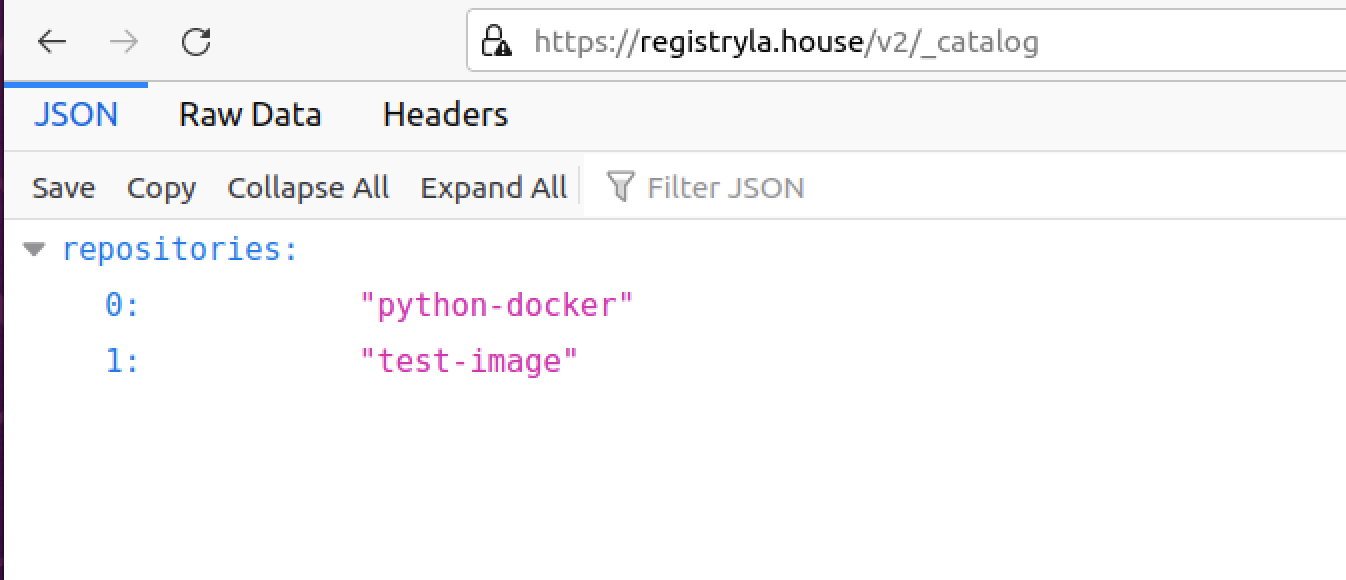
Pulling From Your Private Docker Registry
The pulling of the images in my scenario is on the Ubuntu server. The server that stores the images will also run the containers.
root@stef-VirtualBox:.# docker pull registryla.house/python-docker
job-working-directory: error retrieving current directory: getcwd: cannot access parent directories: No such file or directory
Using default tag: latest
latest: Pulling from python-docker
b52ebda398ed: Pull complete
5ea3b77facf9: Pull complete
3cf88772a539: Pull complete
58e7c3cd0452: Pull complete
8b23ff4b1264: Pull complete
6adf71c86f79: Pull complete
45e8664fa81f: Pull complete
f306212ec89a: Pull complete
9e03f9166c87: Pull complete
7cdae76038dc: Pull complete
Digest: sha256:63cba30a7191cf97d77c01d0f7cef07c8cd8dcbc4e0b08d5e57b73efbeb1cf34
Status: Downloaded newer image for registryla.house/python-docker:latest
registryla.house/python-docker:latest
root@stef-VirtualBox:.# docker images
job-working-directory: error retrieving current directory: getcwd: cannot access parent directories: No such file or directory
REPOSITORY TAG IMAGE ID CREATED SIZE
test-image latest 01a2c457b97f 10 hours ago 77.8MB
registryla.house/test-image latest 01a2c457b97f 10 hours ago 77.8MB
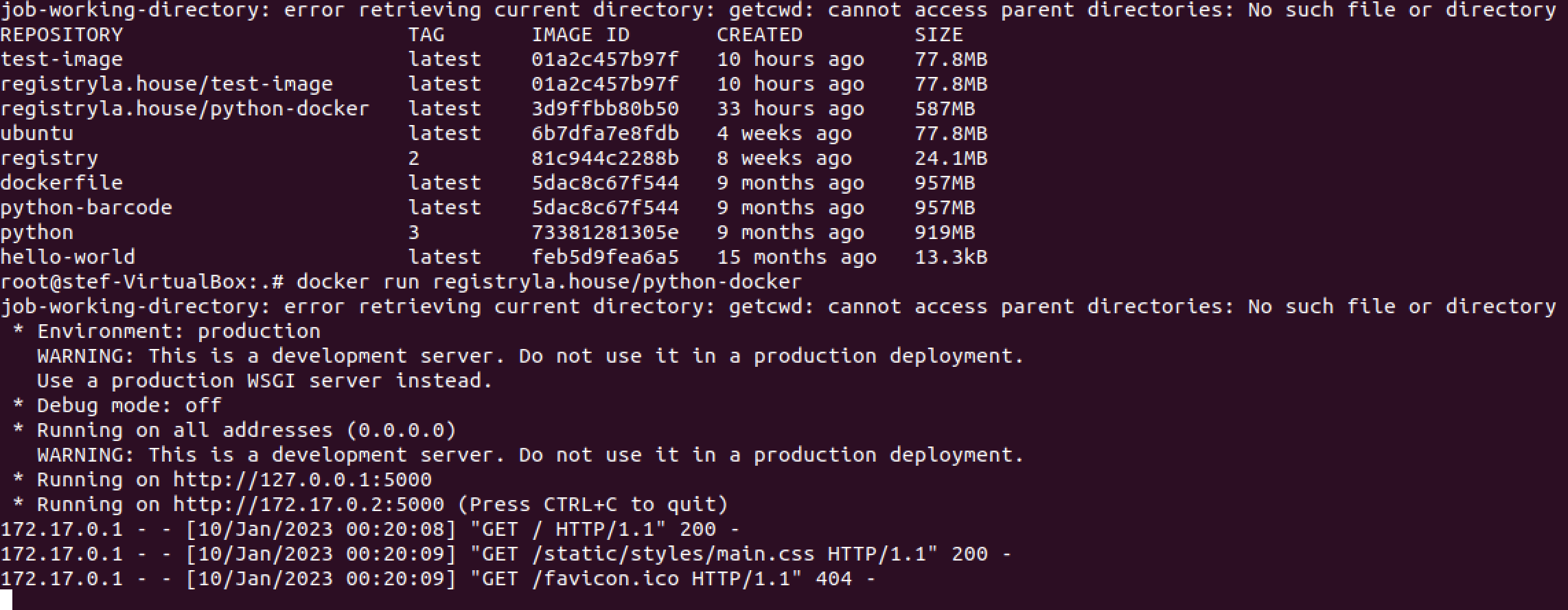
registryla.house/python-docker latest 3d9ffbb80b50 33 hours ago 587MBConfigure Nginx Port Forwarding for Finance Calculator
This is the last part of the puzzle, which is basically a repeat of the method of Nginx port forwarding for the registry.
stef@stef-VirtualBox:/$ cat /etc/nginx/sites-available/registryla.house
server {
        listen 443 ssl;
        listen [::]:443 ssl;
        include snippets/self-signed.conf;
        include snippets/ssl-params.conf;


        root /var/www/registryla.house/html;
        index index.html index.htm index.nginx-debian.html;

        server_name registryla.house www.registryla.house;

        location / {
            # Do not allow connections from docker 1.5 and earlier
            # docker pre-1.6.0 did not properly set the user agent on ping, catch "Go *" user agents
            if ($http_user_agent ~ "^(docker\/1\.(3|4|5(?!\.[0-9]-dev))|Go ).*$" ) {
      return 404;
            }

            proxy_pass                          http://localhost:5000;
            proxy_set_header  Host              $http_host;   # required for docker client's sake
            proxy_set_header  X-Real-IP         $remote_addr; # pass on real client's IP
            proxy_set_header  X-Forwarded-For   $proxy_add_x_forwarded_for;
            proxy_set_header  X-Forwarded-Proto $scheme;
            proxy_read_timeout                  900;
        }
}

server {
    listen 80;
    listen [::]:80;

    server_name registryla.house www.registryla.house;


    return 302 https://$server_name$request_uri;
}
First I copied the working registry server block, and modified it to be HTTP only and run specifically on IP 172.17.0.2 on port 5000.
sudo nano /etc/nginx/sites-available/mmc.house
server {
        listen 80;
        listen [::]:80;


        root /var/www/mmc.house/html;
        index index.html index.htm index.nginx-debian.html;

        server_name mmc.house www.mmc.house;

        location / {
            # Do not allow connections from docker 1.5 and earlier
            # docker pre-1.6.0 did not properly set the user agent on ping, catch "Go *" user agents
            if ($http_user_agent ~ "^(docker\/1\.(3|4|5(?!\.[0-9]-dev))|Go ).*$" ) {
      return 404;
            }

            proxy_pass                          http://172.17.0.2:5000/;
            proxy_set_header  Host              $http_host;   # required for docker client's sake
            proxy_set_header  X-Real-IP         $remote_addr; # pass on real client's IP
            proxy_set_header  X-Forwarded-For   $proxy_add_x_forwarded_for;
            proxy_set_header  X-Forwarded-Proto $scheme;
            proxy_read_timeout                  900;
        }

}
Next I copied the default Nginx site to the new domains .conf file as I had done for the registry and created the symlink for sites-enabled.
sudo cp /etc/nginx/sites-available/default /etc/nginx/sites-available/mmc.house.conf
sudo ln -s /etc/nginx/sites-available/mmc.house /etc/nginx/sites-enabled/
Test Nginx, restart and done!
sudo nginx -t
sudo systemctl restart nginx
Run the new container
docker run -d -p 5001:5001 registryla.house/python-dockerstef@stef-VirtualBox:/$ sudo docker ps
CONTAINER ID IMAGE COMMAND CREATED STATUS PORTS NAMES
f7d071f2c1b4 registryla.house/python-docker "python3 -m flask ru…" 44 minutes ago Up 44 minutes 0.0.0.0:5001->5001/tcp, :::5001->5001/tcp blissful_brahmagupta
53955c400248 registry:2 "/entrypoint.sh /etc…" 13 hours ago Up 13 hours 0.0.0.0:5000->5000/tcp, :::5000->5000/tcp docker-registry_registry_1