
ASA Management Configuration
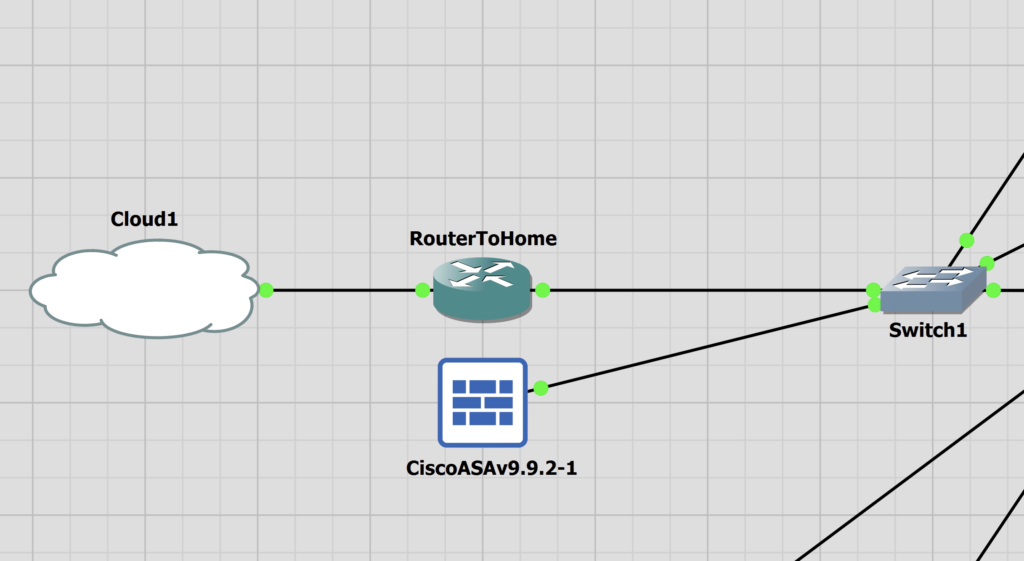
I have created a lab for an ASA using a single ASA to begin with. It’s a basic walkthrough to setup the ASA and the API.
hostname ASA1

interface Management0/0
 nameif MGMT
 security-level 100
 ip address 172.16.1.250 255.255.255.0
 no shut

route MGMT 0.0.0.0 0.0.0.0 172.16.1.254 1

crypto key generate rsa modulus 4096
username admin password <PASSWORD> privilege 15

ssh 0.0.0.0 0.0.0.0 MGMT
ssh version 2
ssh key-exchange group dh-group14-sha1
aaa authentication ssh console LOCAL
aaa authentication enable console LOCAL
Download and Transfer API Installer to ASA
The ASA API can be found here. I am running ASA 9.9, and I have used the file asa-restapi-7161-lfbff-k8.SPA. I have renamed it asa-api.SPA to make it easier to type in my tftp command.
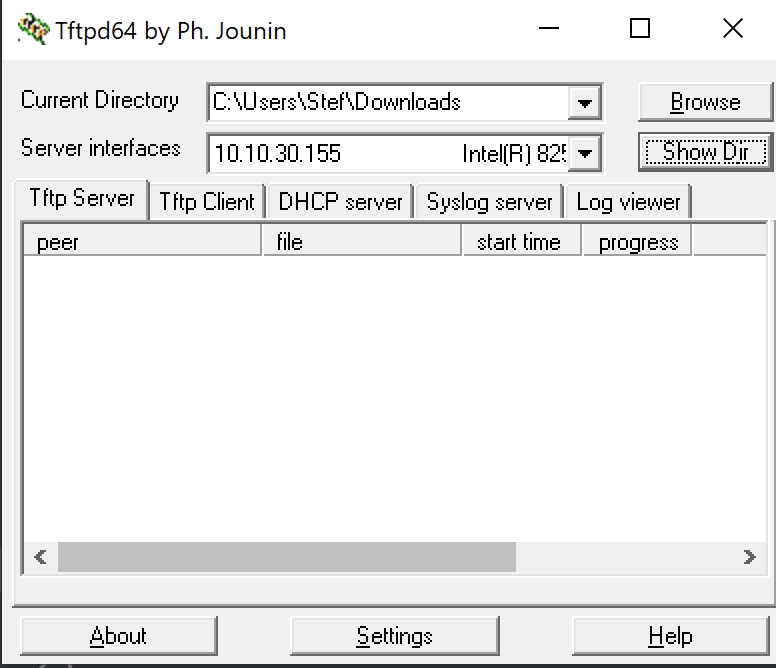
I have used tftpd64 as my TFTP server. I have just set the directory as the Downloads folder. It’s nice and easy to use.
Back on the ASA I have used the following command to copy the file.
copy tftp://10.10.30.155/asa-api.SPA disk0:/asa-api.SPAASA1# dir
Directory of disk0:/
26 drwx 4096 22:49:19 Sep 28 2023 smart-log
23 drwx 4096 22:48:30 Sep 28 2023 log
60 drwx 4096 22:49:24 Sep 28 2023 coredumpinfo
62 -rwx 72895584 23:55:58 Sep 28 2023 asa-api.SPA
1 file(s) total size: 72895584 bytes
8571076608 bytes total (8327450624 bytes free/97% free)
Configuring the API on the ASA
Cisco has a nice, easy to follow document that details the commands to use to install. I’ll dump the commands I used. Read the Cisco doc for full details.
rest-api image disk0:/asa-api.SPA
http server enable
http 0.0.0.0 0.0.0.0 MGMT
aaa authentication http console LOCAL
route MGMT 0.0.0.0 0.0.0.0 172.16.1.254 1 # Already present
rest-api agent
aaa authorization command LOCAL
Testing The API
Once complete, the ASA API should be working. It is important that the user to access the API has privilege level 15 to use the API fully.
- Privilege level 3 or greater is required to invoke monitoring requests.
- Privilege level 5 or greater is required for invoking GET requests.
- Privilege level 15 is necessary for invoking PUT/POST/DELETE operations.
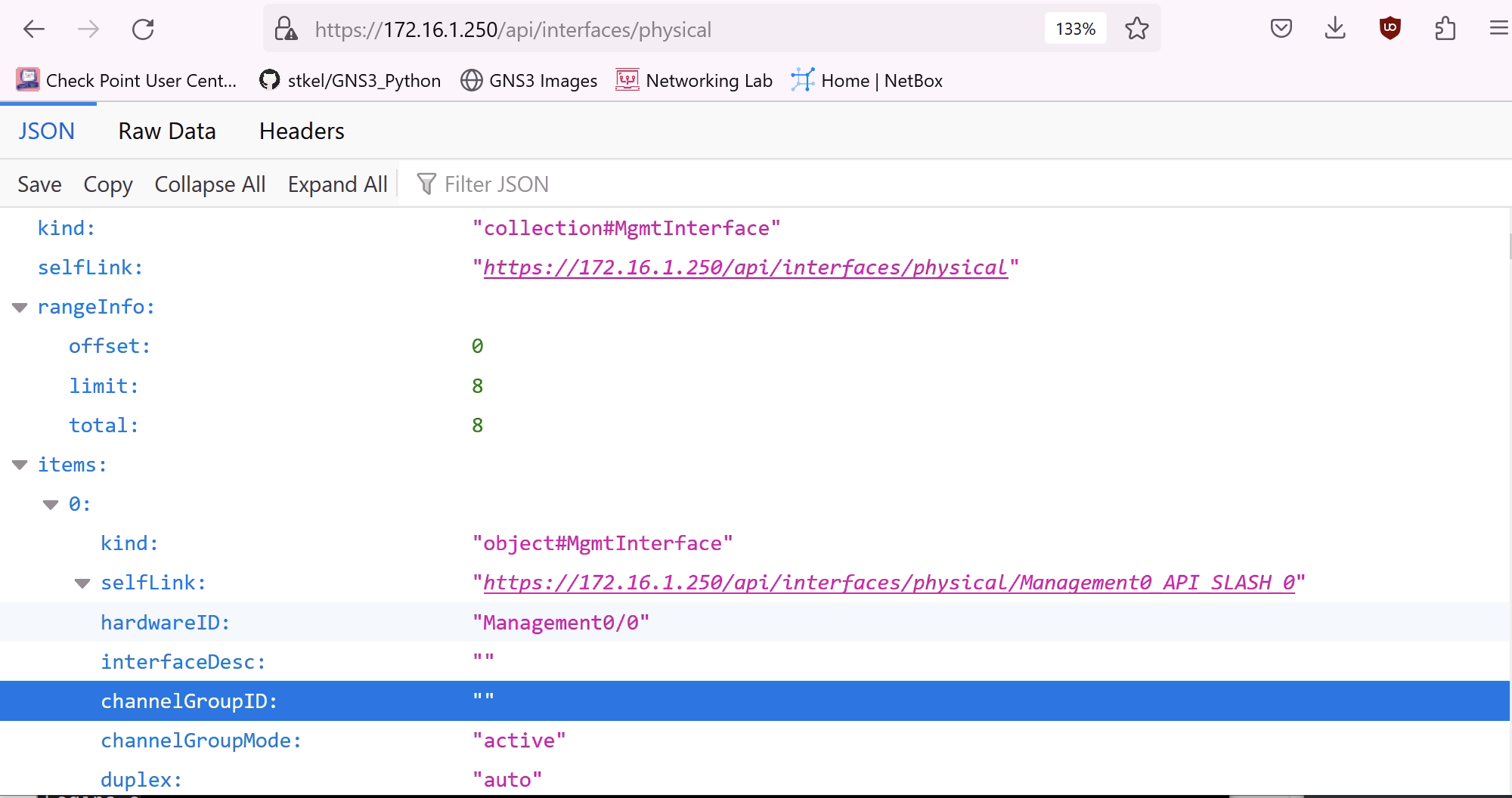
I have navigated to the physical interfaces page from my browser to see the management interface details. https://172.16.1.250/api/interfaces/physical
Cisco have published a list of the API endpoints.