Extensible Messaging and Presence Protocol is an open standard protocol for instant messaging. Arista switches can use this protocol as a way to configure multiple switches with the same configuration at the same time. Arista switches can even be grouped, so all spine switches, or all leaf switches, or switches in a certain location, etc.
The process is quite simple, there is an XMPP server and each switch connects to the server.
Server: 172.17.3.253
Domain: securitydemo.lab
Username (for each switch): spine1, spine2, leaf1, leaf2, leaf3, leaf4
Admin Username: admin
Password (for all): Stefan2020
Authorisation can be locally on the XMPP server or from a AAA server. I have used the local XMPP database. By default, all commands are sent as privilege level 1. Which is only show commands. If using AAA like TACACS the privilege level is also sent with that AAA user.
XMPP Server – ejabberd
The server I have used is ejabberd on Ubuntu 20.04. Below are the steps I used to install this.
As I used a VM in my GNS3 lab from osboxes.org, I needed to; reset the root user password, install server and permit SSH on the root account. As it’s a lab, no issues with any of that. In production, the user “ejabberd “is probably better to be used.
Set version variable and download the correct ejabberd file
EJ_VERSION=20.04
wget https://static.process-one.net/ejabberd/downloads/20.04/ejabberd_${EJ_VERSION}-0_amd64.deb
Install and start the ejabberd service
sudo apt install ./ejabberd_20.04-0_amd64.deb
sudo cp $(sudo find / -name ejabberd.service) /etc/systemd/system
sudo systemctl daemon-reload
sudo systemctl enable --now ejabberd
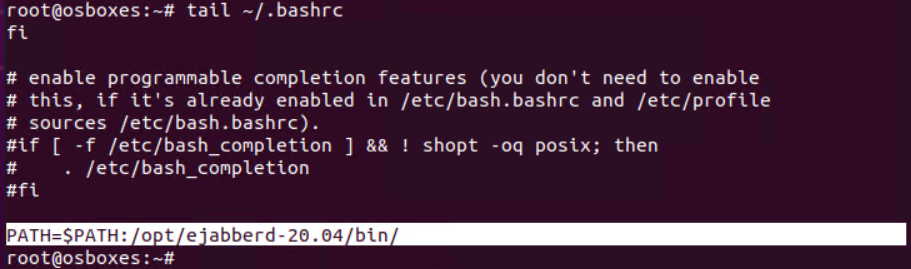
Add path variable to .bashrc
sudo systemctl status ejabberd
sudo find / -name ejabberdctl
sudo nano ~/.bashrc
!PATH=$PATH:/opt/ejabberd-20.04/bin/
source ~/.bashrc
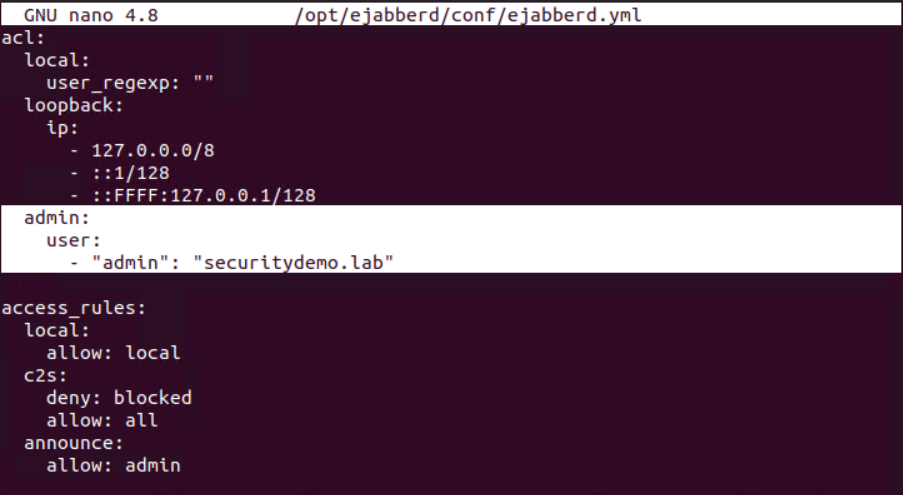
Edit the ejabberd yml file to add in the correct domain and admin
sudo nano /opt/ejabberd/conf/ejabberd.yml
- "admin@ejabberd.securitydemo.lab"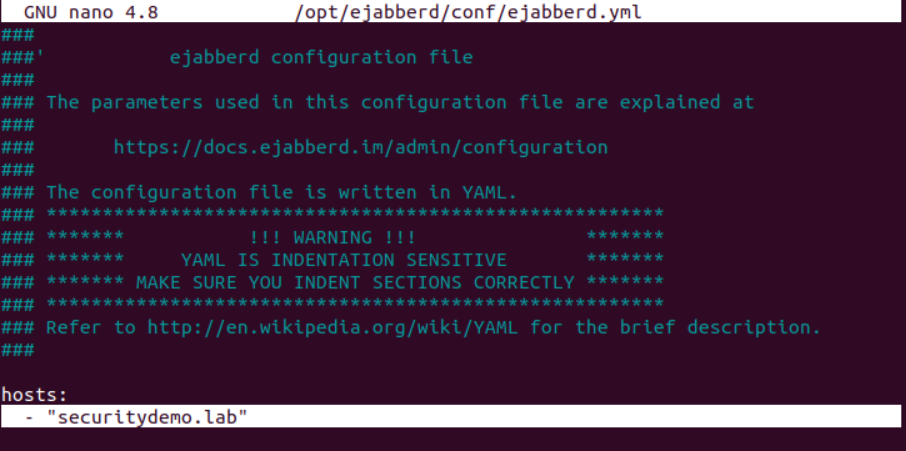
The following commands must be performed as root or as the ejabberd user.
osboxes@osboxes:~$ ejabberdctl register admin securitydemo.lab Stefan2020
ERROR: This command can only be run by root or the user ejabberd
root@osboxes:~# ejabberdctl register admin securitydemo.lab Stefan2020
User admin@securitydemo.lab successfully registered
root@osboxes:~# ejabberdctl register spine1 securitydemo.lab Stefan2020
User spine1@securitydemo.lab successfully registered
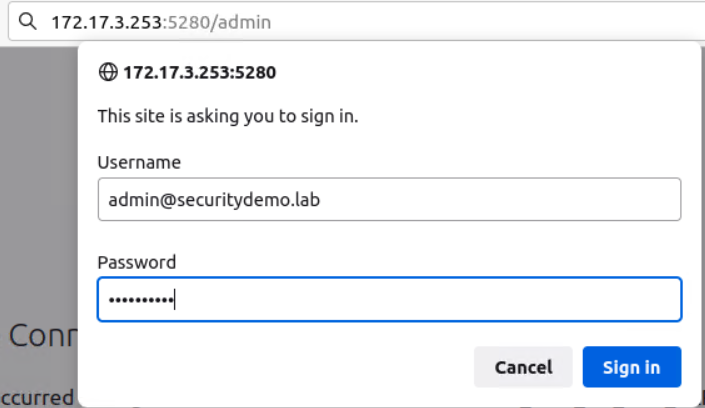
Restart the service and test connection from the web browser http://172.17.3.253:5280/admin/
Credentials are: admin@securitydemo.lab/Stefan2020
Arista Switch Configuration
The switch configuration is much easier than the XMPP server. All there needs to be is; to enable the XMPP client, provide the details of the server and credentials.
Before config
spine1#show xmpp status
XMPP Server:  port 5222
Client username:
Default domain:
Default privilege level for received commands: 1
Connection status: unknown
Config to apply to spine1 switch
conf t
management xmpp
 domain securitydemo.lab
 username spine1 password Stefan2020
 server 172.17.3.253
 no shutdown
show xmpp status again, the switch is reporting as connected. If the connection status is reading as unknown, then the no shutdown command must be issued.
XMPP Server: 172.17.3.253 port 5222
Client username: spine1@securitydemo.lab
Default domain: securitydemo.lab
Default privilege level for received commands: 1
Connection status: connected
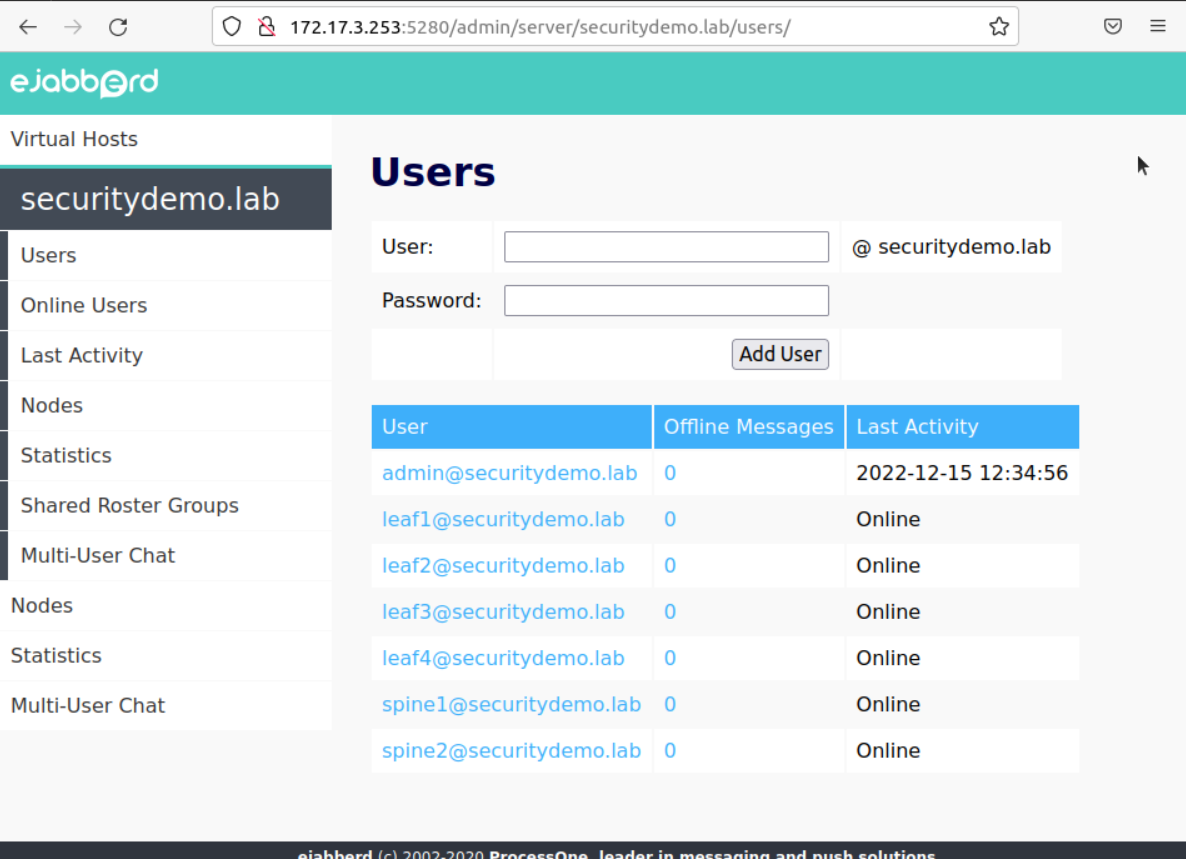
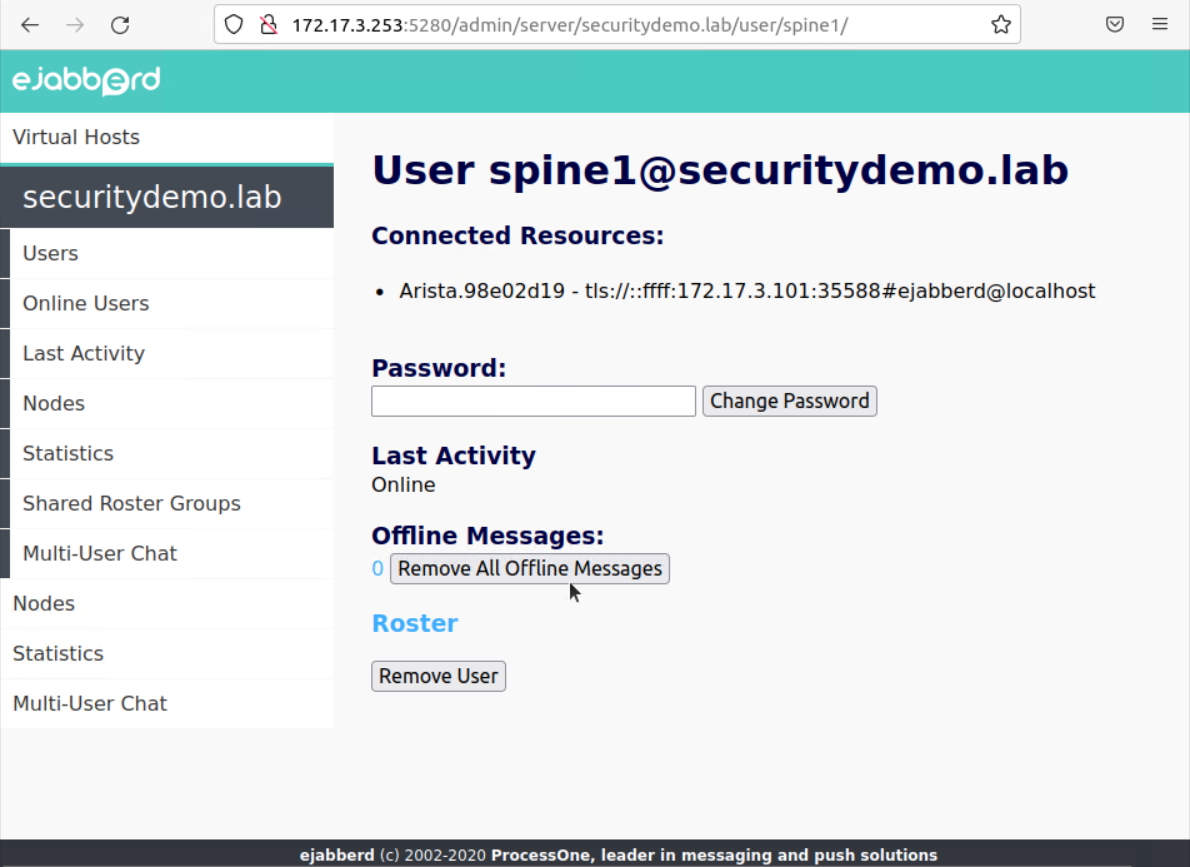
Back in the server portal, the Arista switch is shown as connected
When adding spine2 switch, I had an issue with it failing to connect. There wasn’t any difference between this switch or any of the other five that worked as expected.
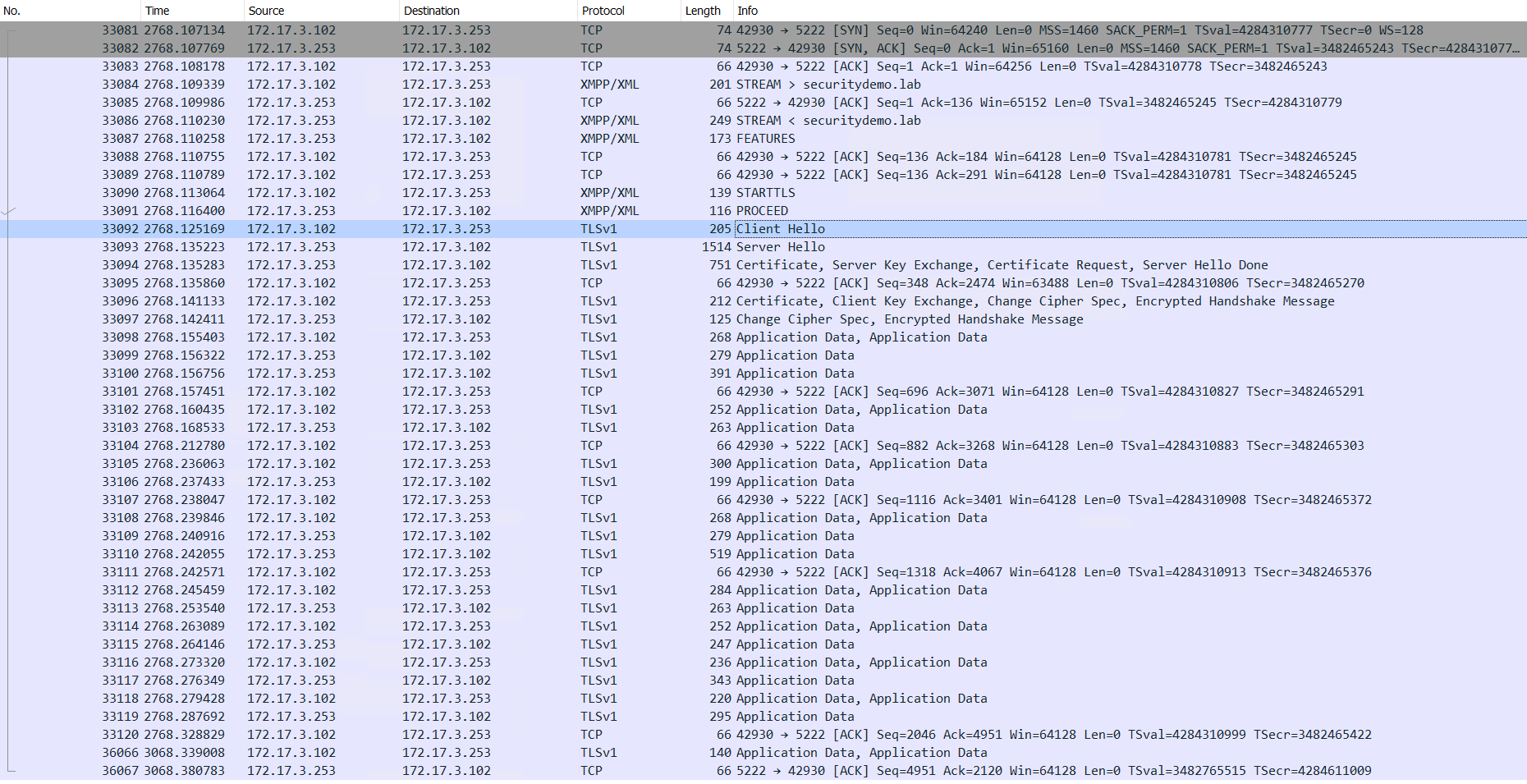
I changed the config for this switch to permit an unencrypted connection to the XMPP server. This did result in a successful connection, but in a Wireshark capture I could see that SSL/TLS was being used.
It is important to note that Arista will use SSL/TLS by default.

spine2(config-mgmt-xmpp)#sh run | sec xmpp
management xmpp
   no shutdown
   connection unencrypted permit
   server 172.17.3.253
   username spine2@securitydemo.lab password 7 122A1112140A02567A7974
   domain securitydemo.lab

spine2(config-mgmt-xmpp)#sh xmpp status
XMPP Server: 172.17.3.253 port 5222
Client username: spine2@securitydemo.lab
Default domain: securitydemo.lab
Default privilege level for received commands: 1
Connection status: connected
All switches connected to the XMPP server